Skip to content
Gardenly3D

Document Center

Turn your garden project into reports ready to share.

Automatically generate planting maps, cost summaries, schedules and specifications from information already in your garden project. Spend less time retyping data and assembling documents, and more time on the design.

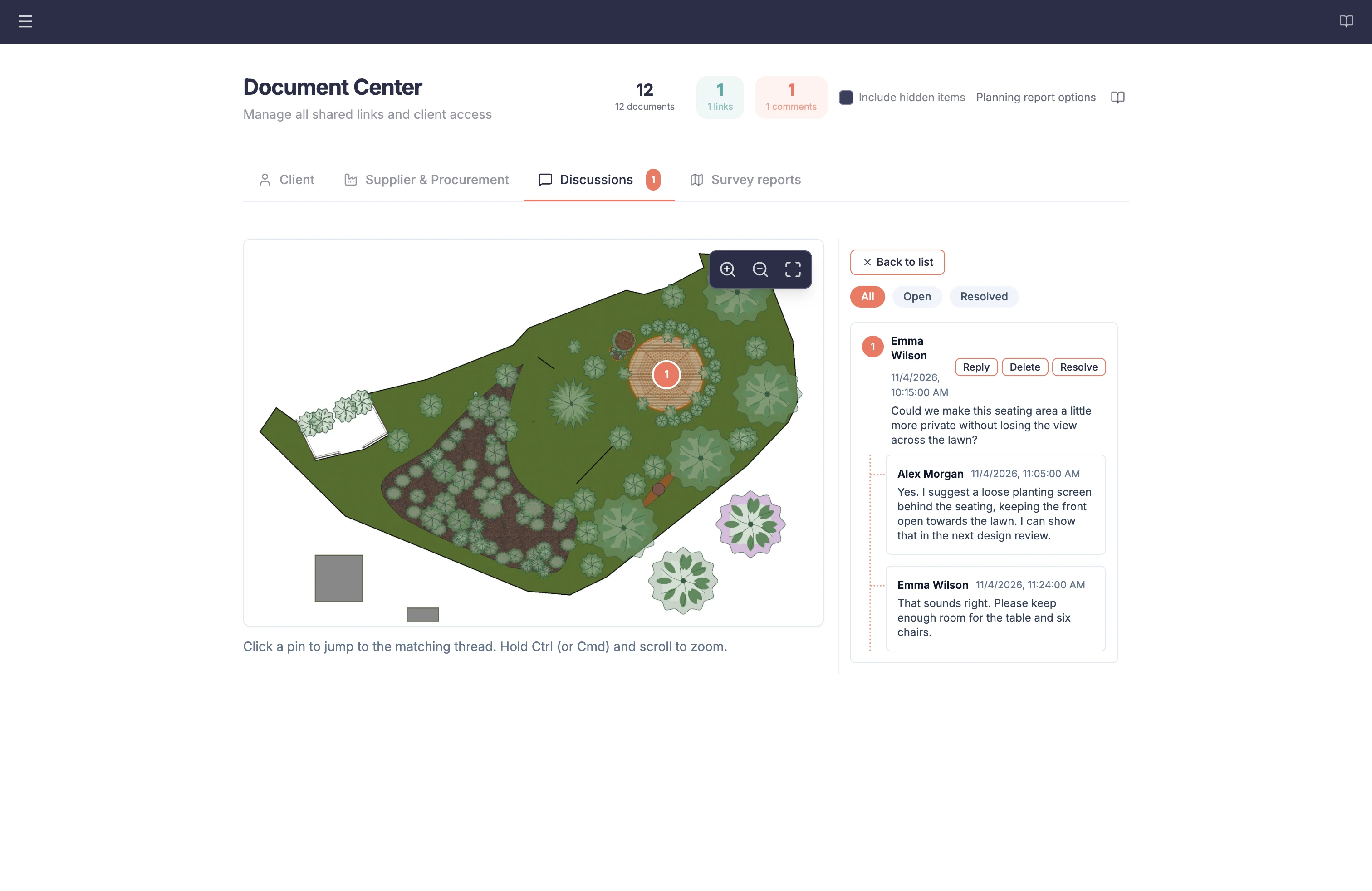
Designer reviewing a pinned client question and replies on the Oakfield Courtyard garden plan in Document Center

Project reports and client review

Reports for your practice, suppliers and clients

Choose the detail for your own review, supplier coordination or client presentation. Check the output, then export reports or share selected material through the Client Review Portal. Clients can ask questions in chat and comment on images, with your replies kept alongside the material they are reviewing.

One source. Auto-generated reports. Different recipients.

One sourceProject database
Generate and shareDocument Center
DesignerInternal reports
SupplierSupplier documents
ClientClient Review Portal
Designer
Chat messages and replies
Client

Less document assembly

Carry the work you have done into the material you send

Keep reports, presentation records and client feedback together without maintaining a separate set of project facts.

Automatic report generation

Auto-generate reports from your project information

Let Document Center assemble reports from the information you have already recorded, instead of copying figures and descriptions into separate documents. Preview the result and export a PDF. When the project changes, regenerate relevant reports before sharing an updated package.

In practice

  • Generate client, supplier and internal reports
  • Combine a planting map with its keyed plant schedule
  • Keep selected imagery and presentation records together

The right audience

Choose what each recipient needs to see

Clients need clear design information; suppliers need quantities and specifications; your practice needs its working detail. Reports have separate client, supplier and designer audiences. Client cost reports use the same pricing with less calculation detail. Designer-only reports provide a fuller breakdown and stay outside external packages. For supported order lists and specifications, you can select one named supplier.

In practice

  • Keep detailed cost breakdowns for your own review
  • Choose a supplier for supported order reports
  • Review whole-project documents before sharing

Stable review material

Know which version the conversation refers to

Create a package from the material you have selected, with a title, welcome message and optional cover. Its report and presentation content stays tied to that shared version while work continues. Choose an optional PIN and expiry, and disable or revoke the link when access is no longer appropriate.

In practice

  • Preview the recipient experience
  • Set optional PIN protection and expiry
  • Keep existing package contents stable

Feedback with context

Keep client questions close to the project

Review discussions from project share links in the Document Center. Numbered pins identify locations on shared images, and general threads keep broader questions together. Reply with text or a supporting photo, resolve completed threads and reopen them when further discussion is needed. Email notifications can support follow-up when enabled.

In practice

  • Review open threads and unresolved counts
  • Open the image a pinned comment refers to
  • Reply, resolve and reopen discussions

Capability detail

Document Center capabilities

Prepare client reports

Explain the design, planting, costs and agreed work with documents generated from the information you have recorded.

Plant lists and planting maps

Prepare the client plant list or a numbered planting map with its keyed schedule. Help the reader connect the planting information to its place in the garden. The plant list can also carry plant information pages from the Plant Intelligence Center.

Plant information and care guide

Add a species sheet for each plant, a seasonal interest matrix, a colour palette board, garden charts and a month-by-month care guide to the plant list, drawn from the plants in the design. Plant information is AI-generated reference information.

Client cost summaries

Show the project total, category totals or individual line amounts. Client reports exclude the detailed material and labor calculation breakdown. Review the figures and audience before sharing.

Goals and project notes

Prepare a report of goals and constraints or project notes. Include recorded decisions in the notes when that context helps explain the design.

Tasks and Decision Log

Generate tasks, decisions or both from Project Management. Choose whether to include decision reasons and awaiting decisions.

Schedules and technical summaries

Prepare project schedules with tasks, milestones, dependencies and critical-path information. Technical summaries bring together recorded lighting, irrigation, drainage and product details.

Prepare supplier documents

Carry measured quantities and selected products into material you can review with nurseries, suppliers or contractors.

Plant order lists

Group individual planting, hedges and generated planting-area species by supplier, with available product and nursery-size details.

Material order lists

Group supported non-plant objects by supplier and category, retaining their recorded quantities, product identity and notes.

Bills of quantities

List measured work and additional items by category, including available structure-member information. Rate and amount columns are left blank for the supplier.

Specification sheets

Bring saved product and variant specifications, custom fields, installation notes and external document links into a supplier-oriented report.

Surface takeoffs

Review supported surface-family quantities for material discussions and requests for pricing. Check the available measurement basis for the items involved.

Keep your working and presentation material

Use the Document Center as the project home for generated reports and selected material saved from other modules.

Internal working reports

Retain fuller cost and planting detail in designer-only reports. These reports are excluded from external share packages.

Survey, terrain and analysis reports

Prepare internal records of Site Survey information, saved terrain profiles and cut/fill findings, and available sun, shade or privacy analysis results.

Design views and selected AI images

Keep captured design views and selected generated images with the project. Save analysis captures separately as internal working material.

Saved slideshows and flight routes

Keep slideshow configurations and captured slides, plus drone-flight routes and settings for your own work. Export drone videos from Garden Presentation and send them separately.

Review, refresh and export

Check the current document before it leaves the practice, and prepare an updated version when the underlying information changes.

Preview and PDF export

Read supported generated reports in the workspace before exporting them as PDFs. Check pagination and content before issuing a document.

Report branding

Use your company name and configured brand colors in supported report and PDF output. Keep the presentation of your client documents aligned with your practice.

Refresh report snapshots

Review update status after relevant design, planning or catalog changes, then regenerate reports. Existing shared packages keep their earlier content.

Hidden-item scope

Include hidden items where a report offers that choice. Full cost summaries retain all financial contributors; survey, terrain and planning reports use their own source information.

Build and manage recipient packages

Share only the material you choose, with a clear introduction and access controls you can administer from the project.

Select the package contents

Choose eligible reports, design images and saved presentations. Preview the package before copying its link for the recipient.

Title, welcome and cover

Introduce the review with a package title, welcome message and optional cover selected from eligible visual material.

Optional PIN and expiry

Add a PIN and choose no expiry or a 7, 30 or 90-day lifetime. Anyone with the required link and PIN can open the package.

Supplier scope

Select one named supplier for plant order lists, material order lists and specification sheets. Bills of quantities and surface takeoffs remain whole-project documents.

Link and discussion controls

Copy or preview a link, disable or re-enable access, or revoke it. Choose whether comments are enabled when creating the package.

Follow up on client feedback

Keep the review conversation associated with the shared version, and handle responses without losing the visual context.

Project discussion inbox

Review share-link discussions in one designer-facing area. Open and resolved filters and unresolved counts help you find unfinished questions.

Numbered image comments

Open a pinned comment in its shared image context. Read general package discussions alongside image-specific feedback.

Replies and photo attachments

Reply within a thread and attach a supported photo when it adds useful context. Keep the conversation together instead of assembling separate messages.

Resolve and reopen

Mark completed discussions resolved and reopen them when a question needs further attention. Thread status does not change the underlying design.

Email follow-up

When enabled, client comments can notify the practice and designer replies can notify participants who supplied an email address.

Useful to know

Review generated quantities, text and document contents before issuing them. Supplier order lists and specifications can be scoped to one supplier; bills of quantities and surface takeoffs remain whole-project. Internal working reports are excluded from external packages.

Questions about the Document Center

Do reports update automatically when I edit the garden?
Generated reports are saved snapshots. The Document Center checks relevant source changes and can regenerate reports when you open, export or share them; you can also request regeneration. Review the refreshed output before use. Existing share packages keep their published content.
Can I send a supplier only their own items?
Yes, for Plant Order Lists, Materials Order Lists and Specification Sheets, select the named supplier when creating the package. Leaving the supplier blank includes all suppliers. Bills of Quantities and Surface Takeoffs remain whole-project documents, so review those separately.
Will the client see my internal working reports?
Designer-only reports cannot be included in external share packages. Client reports apply their own information rules, including omission of internal material and labor detail from client cost summaries. Review the selected audience and output before sharing.
Is a shared package the live garden project?
No. It contains the selected report and presentation snapshots. You can continue editing the garden without changing that package. Create a new package when you want to share a revised version.
What happens to a drone flight saved here?
Document Center keeps the route, waypoints and flight settings for your own work. Drone flights are not included in client share packages. Export the flyover video from Garden Presentation and send it separately.
Can I use my own report branding?
Supported reports and PDFs can use your company name and configured brand colors. Branding is applied through account settings; it does not change the underlying report quantities or information.

Keep the design and client review connected