Skip to content
Gardenly3D

Client Review Portal

Get clearer client feedback on your garden design.

Send clients a link to your Client Review Portal. They can review images, presentations and reports, pin questions to images and chat with you about the design, without needing a Gardenly3D account.

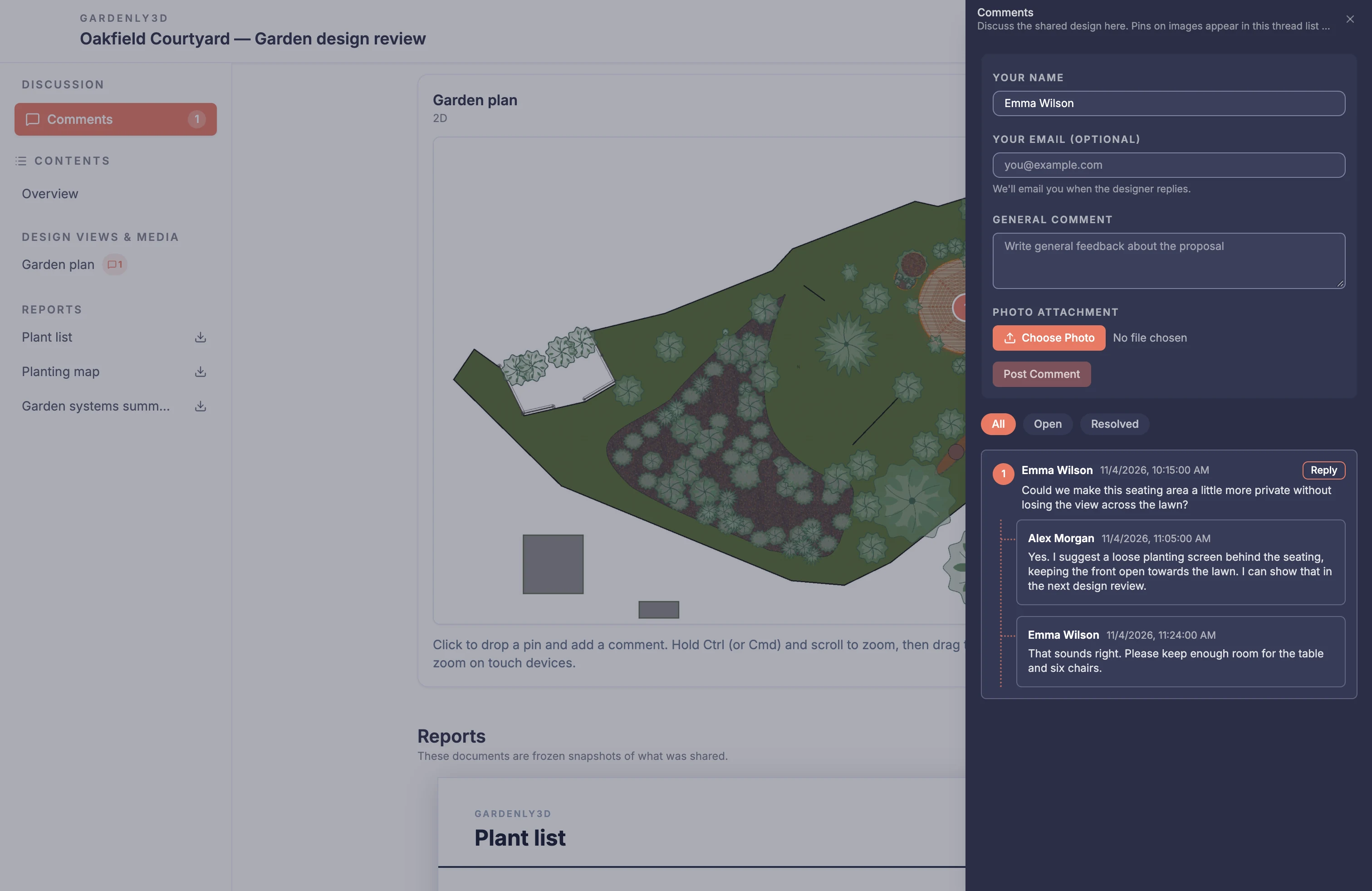
Client reviewing the same Oakfield Courtyard garden plan and pinned conversation in the Client Review Portal

The client review experience

From first look to useful feedback

Clients see only the material you choose to share. Set optional PIN protection or an expiry, and manage the conversation from Document Center.

  1. 01

    Send the share link

    Choose the material in Document Center, create a share link and send it to your client.

  2. 02

    Review the design

    Clients open the link in a browser, enter a PIN if required and browse the shared material.

  3. 03

    Point to a detail

    When comments are enabled, pin a question to a specific part of an image or start a general chat.

  4. 04

    Keep talking

    Read your replies and continue the conversation alongside the shared material.

A clearer client conversation

Spend less time working out what a comment refers to

Keep the reviewed version, the visual location and the discussion together, so you can concentrate on the design decisions.

Easy to open

Help clients focus on the design

Send one browser link rather than asking clients to learn the design application. A package introduction and contents navigation guide them through the selected views and reports on a computer or phone. They see the material you prepared for that review while the working garden stays separate.

In practice

  • Open the link without a Gardenly3D account
  • Browse selected material on desktop or mobile
  • Keep the review tied to the shared version

Feedback in place

Replace โ€œmove thisโ€ with a clear location

Clients can zoom into a shared design image and place a numbered comment where the question belongs. Selecting an existing pin returns to its discussion. This helps you identify the intended area without matching separate screenshots to messages or guessing which version the client saw.

In practice

  • Zoom and pan shared images
  • Place comments at an image location
  • Match numbered pins to their threads

One conversation

Keep questions, answers and reference photos together

Use general discussion for the overall design and replies for follow-up on a specific question. Clients can add a supported photo when it explains their point. Open and resolved views make unfinished discussions easier to find, while email notifications can bring participants back to a designer reply when enabled.

In practice

  • Discuss the whole package or a specific image
  • Add photos to comments and replies
  • Follow open and resolved discussions

Material to keep

Let clients read the detail at their own pace

Present captured garden views and slideshows alongside frozen report previews. Clients can download supported reports as PDFs for later reference.

In practice

  • Read reports within the package
  • Download supported report PDFs
  • Play shared slideshows

Capability detail

Client Review Portal capabilities

Find your way around the package

Introduce the design clearly and keep navigation simple for clients returning to the review.

Package introduction

Show the title, welcome message and optional cover you selected. Summary counts help clients see the available visuals, reports and open discussion.

Desktop and mobile contents

Move between the overview, visuals and reports using the desktop contents panel or compact mobile menu.

Stable shared version

Keep the review tied to the package you sent. Later working-project edits do not silently replace its report and presentation content.

Inspect the shared images

Let clients look closely at the views you have prepared and connect their questions to the relevant location.

Captured garden views

Review captured design views and selected AI presentation images included in the package. Keep the conversation with that selected imagery.

Image zoom and pan

Zoom into a detail, pan around the image and use supported touch gestures to inspect the part of the design you want to discuss.

Numbered image feedback

Click a shared image to place a comment, then return to the discussion by selecting its numbered marker. Comments must be enabled for the package.

Review saved presentations

Give clients a prepared sequence or route to help them understand the material you selected for discussion.

Slideshow playback

Play, pause and step through the captured slides, with their titles, descriptions and recorded timing.

Ask questions and reply

Keep broader questions and detailed follow-up together, with supporting imagery where it helps explain the point.

General package discussion

Start a conversation about the overall design without attaching it to a particular image location.

Threaded replies

Continue the conversation beneath its original comment so the question and responses remain together.

Photo attachments

Add a supported photo to a general comment, image comment or reply, providing useful reference material for the designer.

Open and resolved views

Filter discussion by all, open or resolved threads to find questions still needing attention. The designer manages resolution from the project.

Stay connected to the review

Return to the same discussion and follow the access settings chosen for the package.

Optional reply notifications

Provide an email address with a comment to receive eligible designer-reply notifications when enabled. Email is optional for commenting.

Optional PIN access

Open the package with its link and, when configured, a PIN. Recipients do not need an account in the design application.

Link availability guidance

See guidance when access has been disabled, revoked or expired, so the client knows to contact the designer for help.

Read and keep the reports

Make the written detail available beside the visual design, with downloads for later reference.

Inline report previews

Read the frozen reports included in the package, with company identity and configured branding in supported report output.

Report PDF downloads

Download a supported report as a PDF based on its shared snapshot, keeping the document associated with the version under review.

Plant information and care guide

Read the species sheets, seasonal interest, palette board and month-by-month care guide included in a shared plant list, so the client knows what is planted and how to look after it.

Useful to know

The portal shows the selected shared package. Image pins apply to shared design images; presentations and reports use general discussion. Anyone holding the link and any required PIN can access it, so share those details with the intended recipients.

Questions about the Client Review Portal

Does my client need a Gardenly3D account?
No. The recipient opens the shared link in a browser and enters a PIN if you configured one. Commenting asks for a name; an email address is optional and can be used for eligible reply notifications.
Can clients change the garden design?
The portal is for reviewing the selected material and discussing it. Clients do not enter the drawing workspace. You make design changes in the working project and choose when to share a revised package.
Where can clients place feedback pins?
On supported shared design images. Pins identify an image location and open the corresponding discussion. Slideshows and reports use general package discussion.
Will the package change when I revise the project?
Its shared report and presentation content stays tied to the version you published. Discussion can continue on that package. Create a new package to present a revised design.
Can I close access after the review?
Yes. Manage the link in the Document Center: disable it temporarily, re-enable it, or revoke it. You can also choose an expiry when creating the package.

Keep the design and client review connected