Skip to content
Gardenly3D

Costs, Prices & Products

Understand the cost of the garden you are designing

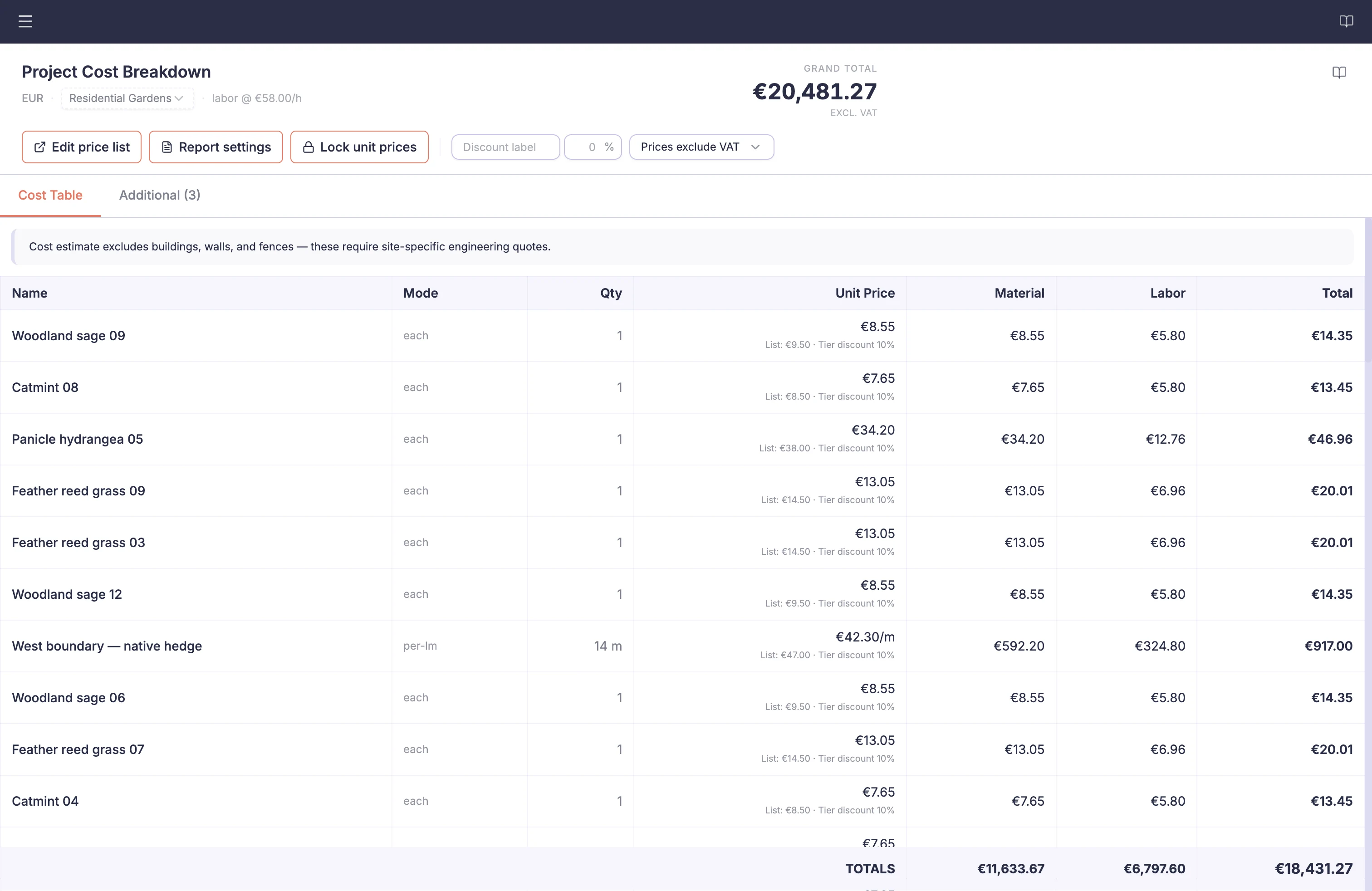
Save reusable product details in your Product Catalog and maintain your rates in Price List. Connect both to the gardenโ€™s measured quantities in Project Costs, where relevant costs recalculate automatically as the design changes. Review the calculation and prepare clear cost summaries for your project.

Calculated project costs for Willow House Garden

From design choices to cost decisions

Three connected workspaces. Less repeated work.

Your Product Catalog and Price List are shared across projects. Project Costs brings their information together with the quantities in the garden you are designing. Prepare reports from the calculation in Document Center.

Garden designMeasured quantities
Product CatalogProduct details and specifications
Price ListUnit prices and labor rates
Project CostsRecalculates as you design
Document CenterCost summaries and supplier documents

Costs connected to your design

Change the design. Costs recalculate automatically.

Use your product details and prices across projects, and see how design changes affect the cost.

Project Costs

See the cost of design changes as you work

Change a priced area, length, volume or number of plants, and Project Costs recalculates the relevant amounts. Extend a count-priced stepping-stone path and its cost follows the new number of stones. Compare options without measuring and entering the quantities again.

In practice

  • Calculate from supported drawing quantities
  • Include material and labor amounts
  • Compare the cost of design options

Product Catalog and Price List

Enter product details and rates once. Reuse them.

Keep product specifications, variants and supplier details in Product Catalog. Maintain unit prices and labor rates in Price List. Link these records to drawing objects so you can reuse your information in each garden project.

In practice

  • Product Catalog: what you specify
  • Price List: the rates you charge
  • Project Costs: quantities and calculated amounts

Unit-price locking

Keep chosen unit prices when your price list changes

Lock an objectโ€™s unit prices to retain its chosen material rates and labor assumptions. Quantities still follow the design: adding more plants increases the total at the same locked price per plant. Unlock to apply current linked prices.

In practice

  • Protect chosen rates from later price-list changes
  • Keep quantities and totals recalculating
  • Unlock to use current linked rates

Document Center

Prepare cost summaries from the calculation

Generate a cost summary from your project calculation, with a total, category summary or line-by-line detail. Prepare plant and material order lists from the same project information. Check the quantities, rates and included work before sharing; regenerate reports when you need updated figures.

In practice

  • Choose the detail shown in client cost summaries
  • Prepare plant and material order lists
  • Retain fuller material and labor detail for your own work

See your products, prices and project costs together

Capability detail

Product Catalog โ€” save product knowledge once

Reusable products and variants

Record the actual products you intend to use, then connect them to drawing objects and the relevant price-list entries.

Products and variants

Search and organise reusable product records by category. Record manufacturer, model, product code, supplier and available variants, including nursery size details.

Standard and custom specifications

Keep relevant product specifications and your own named specification fields together. Add installation notes and links to external product documents.

Maintain your product library

Keep reusable product records current and exchange their details when needed.

Review product changes

See when a linked catalog product has changed. Apply the revised product information deliberately, or keep the saved selection as designed.

Product and variant CSV exchange

Exchange supported identity, notes and nursery-size fields through CSV to reduce repeated entry. Maintain richer specifications and document links in the product editor.

Capability detail

Price List โ€” maintain the rates you use

Unit prices and labor rates

Keep the rates used by your practice together, with controls for different customer prices and project-specific decisions.

Customer price bands

Maintain named customer price bands with their own material rates, discounts and optional labor-rate choices in one account price list.

Labor rates and size grades

Reuse named hourly labor rates and size grades across your price-list entries rather than maintaining separate copies in each project.

Exchange reusable prices

Import or export reusable price-list entries rather than entering each rate by hand.

Price-list CSV exchange

Map columns, review validation and preview a CSV import before applying it. Export selected pricing fields and customer price bands, with explicit metric or imperial rate units.

Capability detail

Project Costs โ€” calculate from the design

Use quantities from the garden

Reduce repeated measurement and entry by using the design as the starting point for your cost calculation.

Geometry-linked quantities

Use count, length, area or volume from supported objects. Choose the pricing basis that fits the work, including an entered count or a lump sum.

Planting-scheme quantities

Include individual plants, hedge plant counts and generated planting-area species. Use the supported count, length or area pricing basis for the item.

Terrain-related quantities

Use supported ground-following lengths and areas. Review cut and fill volumes alongside costs, and enter excavation pricing as an additional item.

Structure member information

Review member counts, profiles, lengths and end-cut information in supported reports. These are quantity details; the structure is priced as one object.

Build the project calculation

Combine measured work with the prices and allowances you choose, keeping the basis of the cost calculation visible.

Materials and labor

Combine material rates with hours per unit and an hourly labor rate. Review both contributions before deciding what detail to show a client.

Additional project costs

Add equipment hire, permit fees, contingency or other costs outside the drawing. Enter a quantity and unit price, or a lump sum, as appropriate.

Adjustments and rounding

Apply your configured customer-price discounts, project adjustments and rounding rules. Review their effect on the project total.

Lock unit prices

Keep your material unit prices and labor assumptions while quantities and totals follow design changes. Unlock to review and apply current linked prices.

Check the calculation

Review unresolved prices, quantities and assumptions before using the cost summary in a customer proposal or supplier discussion.

Pricing warnings

See automatic warnings for missing prices and deleted price-list links in Cost View. Select an affected drawing object to review its pricing in the Inspector and correct unresolved items before relying on the total.

Currency and VAT labels

See currency mismatches instead of silently converting amounts. State whether entered prices include or exclude VAT; VAT itself is not calculated.

Metric and imperial units

Work with familiar measurement units and corresponding rate displays without maintaining a separate set of prices for each unit system.

Prepare cost summaries and supplier documents

Turn reviewed quantities and selections into useful paperwork without rebuilding the product information in a separate document.

Client and internal cost summaries

Choose a client total, category summary or line breakdown. Keep internal material and labor details in the designer working report.

Useful to know

Calculated costs depend on project quantities and the prices, labor assumptions and allowances you enter. Review quantities, rates, unresolved items and included work before using a summary in a customer proposal. A cost summary is not a complete quotation. Gardenly3D does not calculate VAT, convert currencies or place supplier orders.

Questions about Costs, Prices & Products

How are the Product Catalog, Price Lists and Project Costs different?
The Product Catalog records what you specify, including product identity, variants and specifications. Price Lists store your rates and labor assumptions. Project Costs combine these with quantities from the garden design and any additional items you enter.
Do costs update when I change the design?
Yes. Relevant quantities and calculated costs update as you revise the design. Locking unit prices keeps the chosen rates, not the quantities or total: more plants in a count-priced planting area still increase its cost at the same price per plant. Generated reports must be refreshed, and an existing shared package keeps its published version.
What does locking unit prices protect?
It keeps the material unit prices and labor assumptions used in the project from changing when your price list changes. It does not freeze quantities or the final cost. Unlock to review and apply current linked prices. Newly added items still need valid pricing before they can contribute to a complete calculation.
Can I use a cost summary as a finished quotation?
Use it to support your own customer proposal. Review the quantities, rates, included work and any unresolved items, and add the scope and commercial terms needed for your quotation. Gardenly3D calculates cost summaries; it does not check that a quotation is complete.
Can I price a planting scheme as well as individual plants?
Yes. Supported quantities include individual plants, hedge plant counts and generated species within planting areas. The cost depends on the price entries, sizes and pricing basis you choose.
Does hiding a drawing layer remove its cost?
No. The full project cost calculation and cost summary include hidden drawing contributors. Display filters help you inspect the drawing without changing the financial scope.
Can clients see my internal pricing details?
Client cost summaries omit the internal material and labor split and pricing audit. You choose whether to show a total, category summary or line detail. A visible quantity and line total can still reveal the effective amount per unit.
Can I use metric or imperial units?
Yes. Supported quantities and pricing-rate displays work with metric and imperial units. Price-list CSV exchange includes explicit rate units so imported prices can be interpreted correctly.

Continue exploring Gardenly3D